Posts

Posts mit dem Label "Pixel6a" werden angezeigt.

7 methods to get a depth map without exiftool
Bild
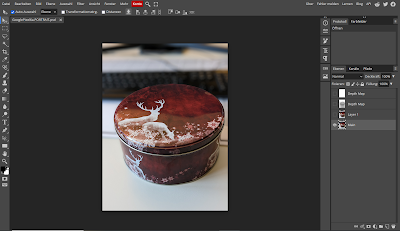
Online Tools Use an online extractor e.g.: Depth Map Extractor or Depth Extractor (both don't work with my example file from the Google Pixel 6a) Use Photopea. Photopea is even able to import all other images inside the metadata. You can use this tutorial or directly go to https://www.photopea.com/ .   Command line Tools Depth-map-extractor an Python script optimised for photos from Huawei  phones. Phonedepth , a small command line tool to extract depth data. Creating not extracting In 3D tools like blender you can simply render the mist pass/depth map and then use it in other programs: AI: There are several AI depth map creation tools. (online and local). The quality varies quite a lot depending on the input image and the used model. Sometimes it looks good at first glance, but is simply wrong. However, the AI models are improving very quickly. But if it is not perfect you can fix it, have a look at the last point. Here for example the not very good output result from 3...

How to extract mp4 videos from your Google Pixel 6a photos

Bild
The Google Pixel 6a phone can take so-called motion pictures. These are jpeg images with a short mp4 video included in the metadata. This is how you see the image in an normal image viewer. This command allows you to extract the video from the jpeg file: exiftool -b -p "${trailer;s/.*(\0\0\0\x1cftypisom)/$1/s}" -ext jpg -w mp4 DIRECTORY or FILENAME -b Output metadata in binary format.  -p "${trailer;s/.*(\0\0\0\x1cftypisom)/$1/s}" Some magic to remove an offset in the binary file. https://exiftool.org/exiftool_pod.html#Advanced-formatting-feature -ext jpg Process files with the specified extension -w mp4 New filename extension DIR Directory or filename    This is the extracted video:  

Depth Map from Google Pixel 6a Photos

Bild
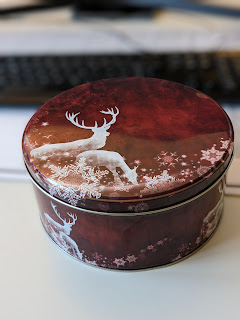
An other phone an other method to get the depth map. 😕 If you shoot with an Google Pixel in the "Portrait" mode it saves three images in one jpeg. The First one ist the Main image you See in every image viewer, second one is the image without any filter applied and the third one is the depth map. Main Image You can get the images with the command line tool " exiftool ". This time the depth map is not saved as embedded data but as a trailer. To extract it you need to fist run: "exiftool(-k).exe" MainImage.PORTRAIT.jpg -trailer -b > ImageWithoutFilter.jpg Image without filter This extracts an image with without any filter applied. Now you need to run the same command with the new created image, this will extract now the depth map: "exiftool(-k).exe" ImageWithoutFilter.jpg  -trailer -b > DepthMap.jpg Depth Map