Posts

Posts mit dem Label "map" werden angezeigt.

How to get Data from an Android phone and visualise it with terraink.app and Inkscape

Bild
In 2024, Google announced that they would begin storing your Timeline data (i.e. your Location History) locally on your device rather than in the cloud on their systems. The desktop version of the Timeline viewer was also discontinued since the data is now stored on your phone. But you are still able to export your timeline data How to obtain your Timeline JSON file: The most reliable way to obtain a compatible JSON file appears to be via your Android device's system settings, as direct export from the Google Maps app's main interface may no longer be available or straightforward: Navigate to your Android device's Settings . Go to Location . Select Location Services (or a similar entry, this may vary slightly by Android version/manufacturer). Tap on Google Location History or Timeline . Select your Google Account (if you have multiple). Look for and click on an option like "Export Timeline Data" or "Download a copy of ...

360° Map of the Nuremberg Area from 1581

Bild
Prologue : I originally planned to publish this blog post during the LGM 2026 in Nürnberg. Sadly, however, the  image  from the museum's object catalogue is under CC BY-NC-ND 4.0, so I was not allowed to use it to create a VR panorama. Fortunately, however, the museum has given me permission today to use it under a CC0 1.0 license. At the Germanische Nationalmuseum , I discovered this 360° map of the Nuremberg area from 1581. I just had to convert this 360° round image into a panorama for VR glasses, especially as it is the oldest one I have ever seen – it is almost 500 years old! https://objektkatalog.gnm.de/objekt/La140   First, I removed the decorations in the corners and cleaned up the image. Then, using the workflow described in this old  tutorial , I created an equirectangular 360° panorama. Finally, I added metadata with ExifTool to enable Google Photos and other panorama viewers to detect it as a 360° panorama.    The embedded A-Frame I used s...

Alternative for Aerialod

Bild
First of all what is Aerialod and why do i need an alternative. Aerialod is an tool to create fast 3D voxel images out of height maps. Advantages and Disadvantages of Aerialod Advantages: User-Friendly: Aerialod is an easy-to-use tool for creating 3D terrain models. It caters to both beginners and experienced users who want to achieve results quickly. Freeware but not Open Source: Aerialod is free to download but does not allows users to modify and extend the source code. Variety of Features: Aerialod supports the generation of various terrains, the use of real satellite data, and the creation of synthetic heightmaps. This makes it a versatile tool for different applications in geodata visualization. Disadvantages: Lack of Advanced Features: While Aerialod offers many useful functions, it may lack some advanced features found in professional 3D rendering tools, making it less suitable for certain applications. Not Open Source No new version since 2023. Overall, Aerialod presents an in...

QGIS 3D MAP mit offenen Daten

Bild
Wie man hier im Blog sehen kann, beschäftige ich mich schon seit einiger Zeit mit der Erstellung von Karten für Fotobücher. Bisher habe ich dafür GIMP und Inkscape verwendet. Nun wurde ich zum ersten Mal "gezwungen" mich mit QGIS zu beschäftigen. Auslöser war ein Blogpost von https://opendata.stadt-muenster.de/ über 3D-Gebäudedaten , die für ganz NRW kostenlos zur verfügung stehen. Also habe ich den Urlaub zwischen den Feiertagen genutzt mir verschiede Tutorials über QGIS anzuschauen, damit ich überhaubt was mit den Daten anfangen konnte. Als Testgebiet habe ich die Schleife in Münster Kinderhaus gewählt, da es dort viele Häuser in unterschiedlichen Höhen gibt. Leider war die Qualität der 3D-Gebäudemodelle "LoD1" und "LoD2" schlechter als erhofft. Einige Gebäude fehlten ganz, andere waren nur als Punkte dargestellt, wie man auf diesem Screenshot sehen kann: Was in der 3D-Ansicht natürlich nicht allzu beeindruckend aussah: Zum Glück habe ich dann noch e...

Isle of Mull

Bild
I've created a isometric like image of the Isle of Mull in Scotland with GIMP, G'mic and Inkscape for a photo book: I used Gimp 2.9.9 with the new HGT file import and the height maps from the NASA. You can read more about it here: https://dablogter.blogspot.de/2018/01/gimp-now-supports-hgt-file-format.html G'mics 3D elevation plugin: Water texture from here: https://www.roblox.com/library/31952856/Water-Texture-FREE The land colours are from a blurred screenshot from Google Earth. Inkscape for the markers: The sun is the standard "Sparks" brush from GIMP. Cloud and bird brushes from https://www.deviantart.com https://para-vine.deviantart.com/art/Cloud-Brushes-152820554 https://wingsofahero.deviantart.com/art/Bird-Brushes-119021426 https://wingsofahero.deviantart.com/art/Flying-Bird-Brushes-116541763 And a lot of fine tuning in GIMP, here is a screenshot of the layers dialogue:  

Gimp now supports the HGT file format

Bild
In the latest developer version Gimp (2.9.8) now supports the HGT file format. So what is HGT? That’s topography data basically just containing elevation in meters of various landscape ( HGT stands for “ height “), gathered by the Shuttle Radar Topography Mission (SRTM) run by various space agencies (NASA, National Geospatial-Intelligence Agency, German and Italian space agencies…).  You can read more about the file format in Jehans blog: https://girinstud.io/news/2017/12/new-format-in-gimp-hgt/ Get Gimp >= 2.9.8. Get the HGT file you are interested in. I used this on: https://dds.cr.usgs.gov/srtm/version2_1/SRTM3/Eurasia/N50E014.hgt.zip Unzip the file. Open the HGT file in Gimp.  It is OK, that the file is all gray. Now we have to go to the next step. Edit the HGT file with Colours -> Levels Use the black and white triangles in the "Input Levels" section to show only the interesting data. To be more exact you can open the levels dialogue a second t...

darktable geoToolbox Script

Bild
Last year I blogged about the KML and the geoJSON export scripts for darktable . I've wrote an other script for darktable, the geo toolbox and it looks like this: I'd like to describe the functionality here short: Button 1 and 2: With this two buttons you can select all images with or without location information in the Exif tag. Button 3 and 4: With this button you can copy GPS information from one iomage to an other. With the checkboxes you can select which part of the GPS information you like to copy. Button 5 [open in Gnome Maps]: This button opens Gnome Maps and shows the position of the photo in the map. Button 6 [reverse geocode]: This function is still not very useful. It uses a web-service from Mapbox to get information from OpenStreetMap about the place of the selected photo and shows this in an info window. Button 7 [export altitude CSV file]: This function exports a CSV file from the selected images with the altitude in meters i...

Low polygon 3D Europe map UPDATE 2

Bild
As the "Low polygon 3D Europe map" tutorial is on of the most read posts I have some more information for you.   1. Here you can download a complete land topography of the world as a digital image of the three-dimensional structure of the Earth's surface: http://visibleearth.nasa.gov/view.php?id=73934  2. The link to "Open Digital Elevation Model (OpenDEM)". You can use this data to create an similar image. (I haven't done this. It looks like a lot of work.) http://www.opendem.info/index.html 3. Somegeneral information about Digital elevation models: https://en.wikipedia.org/wiki/Digital_elevation_model The two older post in this series:  Low polygon 3D Europe map Low polygon 3D europe map UPDATE

Tutorial: Creating maps from geo tagged photos

Bild
If your camera is able to add gps coordinates to the photos you can use darktable to create a KML or geoJSON files with thumbnails of the photos. Install the latest version of darktable: https://www.darktable.org/install/ Get the latest version of the KML or geoJSON script: https://github.com/darktable-org/lua-scripts/tree/master/contrib Copy the scripst into the folder: ~/.config/darktable/lua Add this lines to the file: ~/.config/darktable/luarc require "kml_export" r equire "geoJSON_export" Import the photos into darktable: https://www.darktable.org/usermanual/ch01s03.html.php#d0e788 Edit the settings: Select all photos you like to have in the KML or JSON file. Export the photos:   And this are the results of the exports The KMZ opened in Google Earth The KMZ opened in KDE Marble The HTML file, that renders the geoJSON with the help of MapBox .  (To get the map rendered you need a MapBox account and insert the ...

Tutorial: How do I get Google Maps routes into Inkscape?

Bild
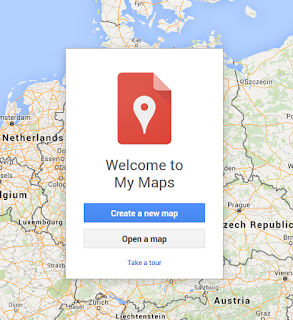
1. Create a new map with Google My Maps: 2. Create a route:  3. Export as KML  4. Go to http://indiemapper.com/app/ (The link does'n work any longer) and import the KML file:  5. Use the export button to export it to SVG:  4. / 5. Update: Use https://mygeodata.cloud/converter/kml-to-svg  to convert the KML to SVG.  6. Open the file in Inkscape

Maps for Photo Books

Bild
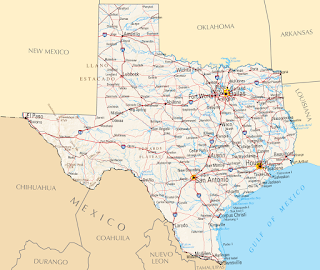
  I love to add maps to the photo books. Here is a collection of some of them.    This is a example of a simple map without the visited places marked. I just added the big Texas label and the overview map of North-America. I used Inkscape and Gimp for this map.    This is a map I made as a title for a calender. I marked the locations from the photos. This image was made with Inkscape. This map is a mix of elements with Gimp extracted from old maps and then composed to a new map in Inkscape.  For this map I got the base image from Mapbox . Then I added the route and some details with Inkscape. To create the route I used Google My Maps , exported it as KML file and converted it to SVG. Here I used a image from the NASA and added the flight route with Gimp and the text boxes with Inkscape. Here I used Blender to create the map. I wrote a longer post here: Low polygon 3D europe map Google My Maps and Inksc...