Gimp, Inkscape, Hugin, Blender, Linux and every thing else I like.
Little Planet
Link abrufen
Facebook
X
Pinterest
E-Mail
Andere Apps
I've made a "little planet" out of an panorama I made in the Elbe Sandstone Mountains. Heute mal ein kleiner Planet, den ich aus einem Panorama gemacht habe, das ich im Elbsandsteingebirge aufgenommen habe.
Hello my latest little project is a 3D low polygon map. I used Blender and Gimp to create this map: I've started with an elevation map of Europe I found on the website from "The European Environment Agency" (EEA). Thank you EU for this image: http://www.eea.europa.eu/data-and-maps/figures/elevation-map-of-europe Then I had to cut of the black border with Gimp and created a second image as height map: For this step I converted the image to black and white and then used the curve tool to make the mountains darker. This will make the mountains in the final image higher and easier to discover. Then I used this tutorial to create the 3D image in Blender: http://johnflower.org/tutorial/make-mountains-blender-height-maps But I didn't subdivide in as many parts than the tutorial ans I haven't smoothed, because I wanted a low polygon look of my image and not a realistic one. After this step I gave the plane the original colour image as textur...
Since I wrote the original tutorial , GIMP has evolved, so I've created an updated version that makes use of the new features. The most important new features are that you can now use linked layers, layer groups and non-destructive effects. This tutorial discripes how to create this chrome ball with GIMP. First of all you need a equirectangular panorama . If you don't have one you can get one from HDRI Haven . For this tutorial I took this one: https://hdrihaven.com/hdri/?h=bell_park_pier This time I chose the 2k version because it is faster to process. Of cause you can use other resolutions if you like. Now create a new image with 2048x1024px and delete the background layer: Then open the image in GIMP with "File -> Open as Link Layer..." and duplicate the layer. The "Open as Link Layer" gives you the possibillity to change the image later. This is the background layer on which the chrome ball sits. We now need a second layer for the ball itself...
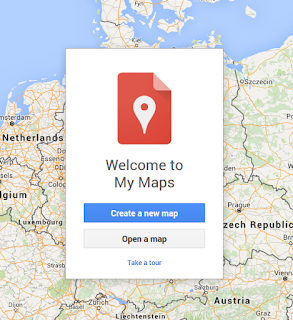
1. Create a new map with Google My Maps: 2. Create a route: 3. Export as KML 4. Go to http://indiemapper.com/app/ (The link does'n work any longer) and import the KML file: 5. Use the export button to export it to SVG: 4. / 5. Update: Use https://mygeodata.cloud/converter/kml-to-svg to convert the KML to SVG. 6. Open the file in Inkscape


Kommentare
Kommentar veröffentlichen